
How to plan guest seating for weddings and events
Whether you are arranging a wedding, banquet or gala, start with a guest list and a rough picture of the venue. You do not need every detail to be final: place the tables first, then move people and furniture as the plan changes.
Open the seating planner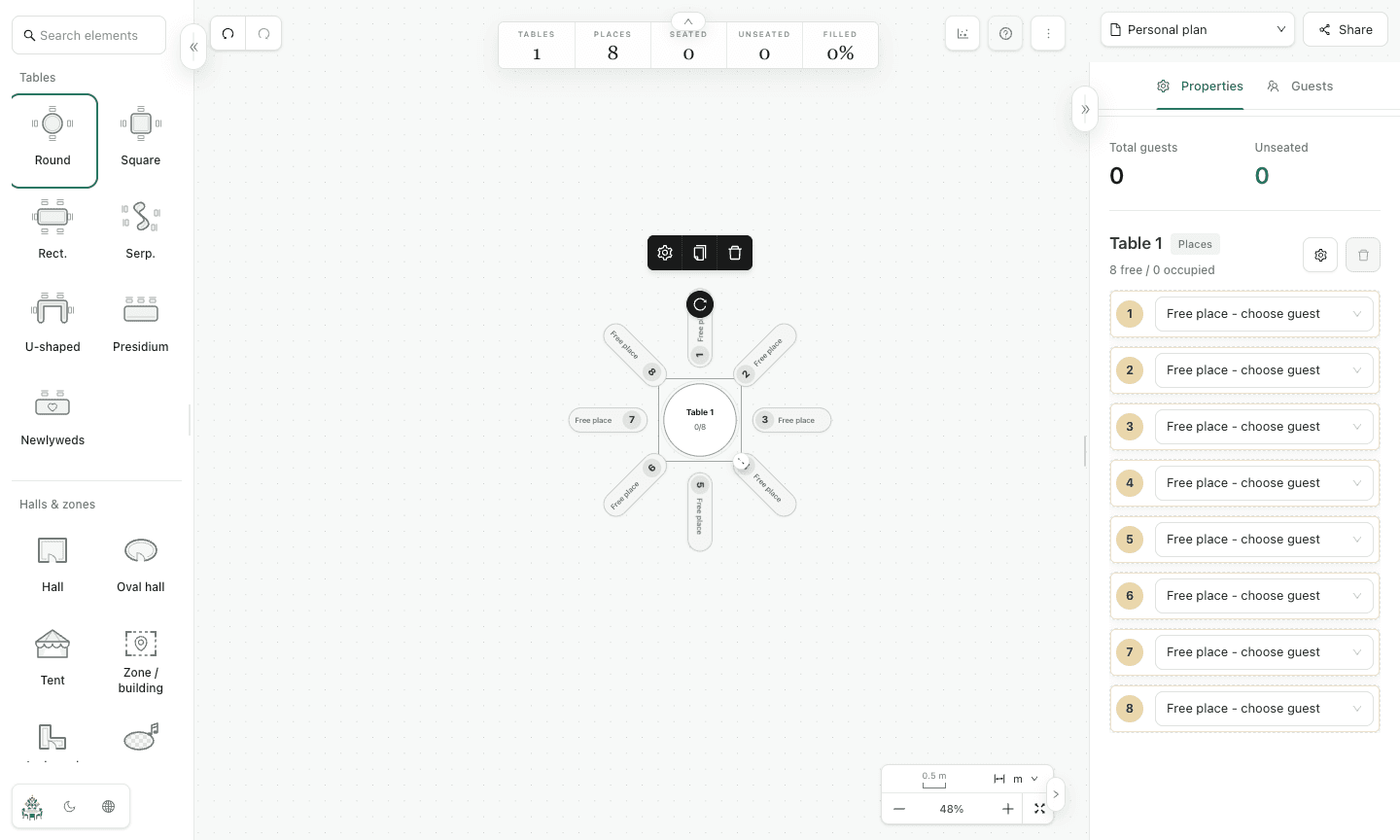
Build your plan in five steps
Prepare the guest list
Add one guest per line in the Guests panel, or import a CSV with a name column and optional label column. Make pairs for guests who should be seated together. Labels can help you find family groups or other groups while planning.
Sketch the venue
Add a hall or zone, then place tables where they fit. Choose round, square, rectangular, serpentine, U-shaped or presidium tables. Add a dance floor, stage, bar or other objects only where they help the layout.
Set capacity before assigning seats
Adjust each table's size and number of seats in Properties. Keep enough room for walking routes and venue entrances. A table's available places are easier to review before names are assigned.
Seat guests and review gaps
Assign names to seats from the guest list. Check the unseated count at the top of the map and revisit table capacity as the guest list changes. Move guests between seats without rebuilding the plan.
Share a draft, then export a final copy
Use Share to send a preview link to the seating map; password protection is available. Export a PNG for the layout, Excel for a guest/table list, PDF for the map and guest lookup, or JSON as a restorable plan file. Review the final version with your venue before printing.
Before you send the plan
- Check that every confirmed guest has a seat and that no table exceeds its intended capacity.
- Check the table numbers, stage, entrances and walking paths against the real room.
- Keep an exported copy. Personal plans are saved in this browser, not in an account.
Common questions
- Do I need an account?
- No. A personal plan is saved on your device. Export JSON if you need a backup or want to move the plan to another browser.
- Can someone else edit the plan?
- New shared links open a preview of the seating map. The event owner keeps editing access. For someone to work on an independent copy, export an event backup and have them import it; later changes are not automatically synchronized between the copies.
- Can I change seats after importing guests?
- Yes. The guest list and seating assignments can be edited independently. You can move a guest, change a table's capacity or leave a seat open while you decide.