
Event guest list planner: import names, labels and pairs
A useful guest list gives each person one clear record that you can find during planning and seating. Planlino uses the same guest records in the event's Guests page and its seating map, so you can organize names before deciding where everyone sits.
Create your event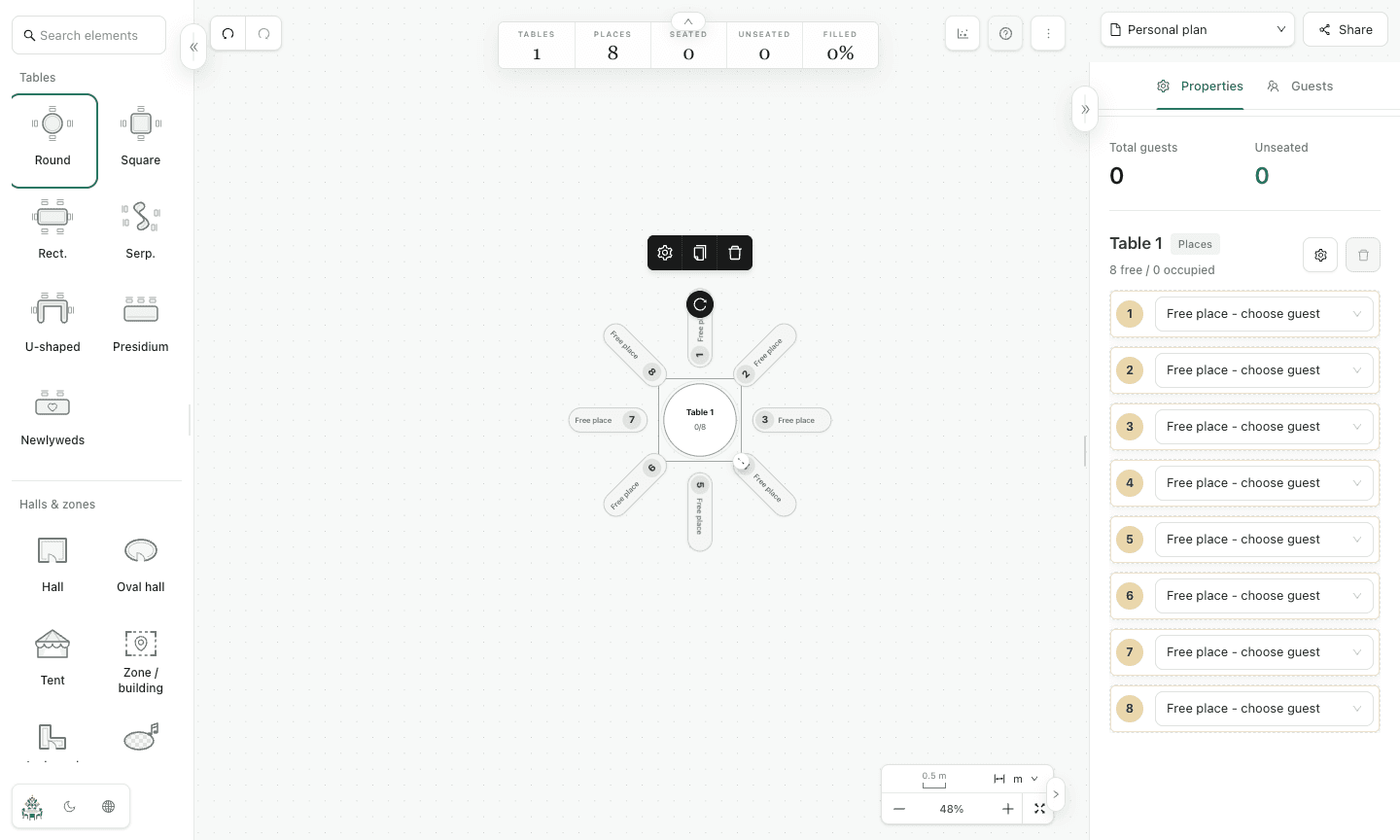
Build your plan in five steps
Start with one person per entry
Open Guests in your event and enter one name per line. Include each partner as a separate guest rather than placing two people in one name. Distinguish guests with identical names using an extra detail that helps you identify them.
Import your existing spreadsheet as CSV
Open the CSV import example and use its downloadable template. The file needs a name column and may include a label column. Check the preview before import. Planlino skips duplicate names; a rejected file leaves your existing list unchanged.
Use labels for the groups you need
Give guests labels such as family, speakers or team. A guest can have multiple labels, so someone can belong to both family and a confirmation group. Use labels to record information you manage yourself; Planlino does not send invitations or collect RSVPs.
Create pairs before assigning seats
Link two guest records as a pair when they should be seated together. Check the names and pair relationships before opening the map. Keep the list current as attendance changes and search by name or label when reviewing a particular group.
Connect the list to the seating plan
Open Space and assign guests to table places. Check the unseated count rather than assuming everyone is assigned because the list is complete. Download the guest list as text or export a seating PDF or Excel file. Export an event backup for a restorable copy.
Example: a couple with different group labels
Add Ana Popescu and Ion Popescu as two guests, then link them as a pair. Ana can have the labels Family and Confirmed; Ion can have Friends and Confirmed. Searching Confirmed finds both people, while their pair keeps the seating relationship visible. You update these labels yourself after hearing from each guest; they are not an automatic invitation response.
Before you send the plan
- Give each person a separate entry and check duplicate names.
- Review labels and pairs before assigning table places.
- Keep a backup of the event, especially before changing devices.
Common questions
- How do I organize a wedding guest list?
- Give each person a separate entry, check duplicate names and add useful group labels such as Family or Friends. Link couples as pairs before assigning seats. Update attendance labels yourself, then check that every guest who needs a seat has a place in the final chart.
- Can I import a guest list from Excel?
- Save the spreadsheet as CSV, then use the Guests page's CSV import. Review the example and preview so the column names and imported labels are correct.
- Can one guest belong to several groups?
- Yes. Add multiple labels to the same guest and search the list by name or label.
- Does Planlino send invitations or collect RSVPs?
- No. You enter guests and update labels yourself. The list helps you organize attendance information and assign seats once you have confirmations.