
Plan on your phone, then continue on another device
You can update a guest while you are away from your laptop, then review the room layout on a larger screen. The detail to remember is where the event is saved: personal events stay in the browser on the device you are using. Opening the website elsewhere does not move that event for you.
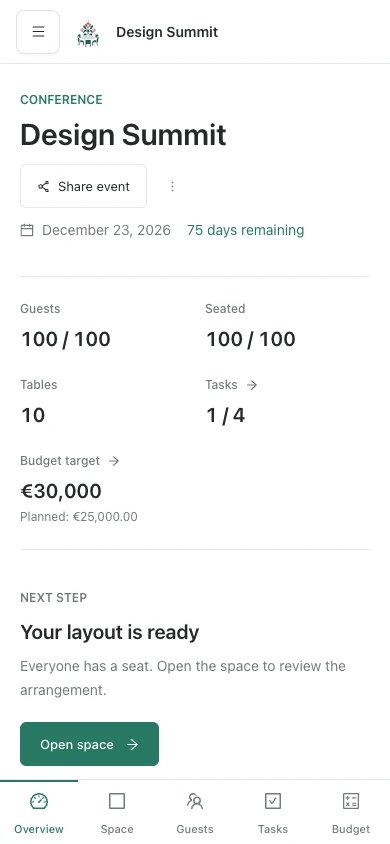
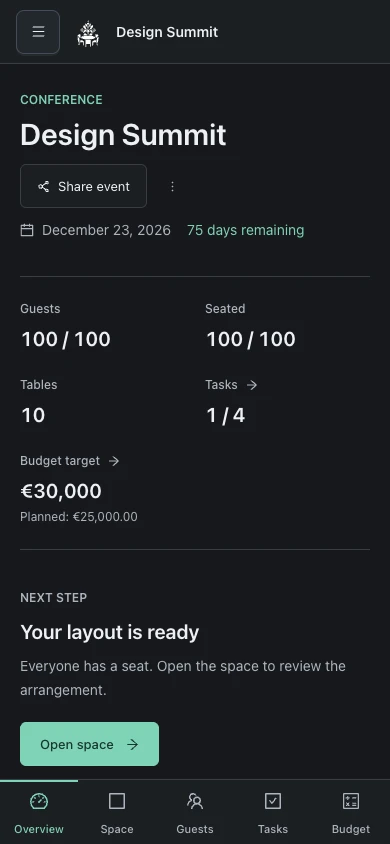
Use the phone for the change in front of you
When somebody confirms, open Guests and update their entry or label. If a supplier gives you a new date, put it in the relevant task. For a larger rearrangement of tables, use whichever screen lets you check the whole room comfortably.
Before leaving the event, make sure you have made the change in the correct project. A demo is a separate event; it is useful for trying controls without changing your own plan.
Move the event with a backup
Use the event transfer controls to export a backup after your changes. Keep the downloaded file somewhere you can access from the other device, then import it there. The backup includes guests, seating, tasks and budget.
Open the imported event and check a recent change, such as the last guest label or task deadline. The imported event is a separate copy. Decide which device holds the working version before making further edits, because those personal copies do not automatically synchronize.
Keep a copy outside the browser
A PDF or PNG is useful for reading the seating plan, but it cannot restore the whole event. Keep the event backup as well, particularly before clearing browser data or changing devices.
A shared map link gives someone a read-only preview, not your full personal workspace. Use the backup when you need to continue editing the whole event on another device.