
A guest list change: five checks before sending the event plan
A guest calls to say they are bringing a partner. Or a couple can no longer come. Editing the names takes a minute, but the old seating chart and menu count may now be wrong. Before sending another version to the venue, check the places, the costs and the files it already has.
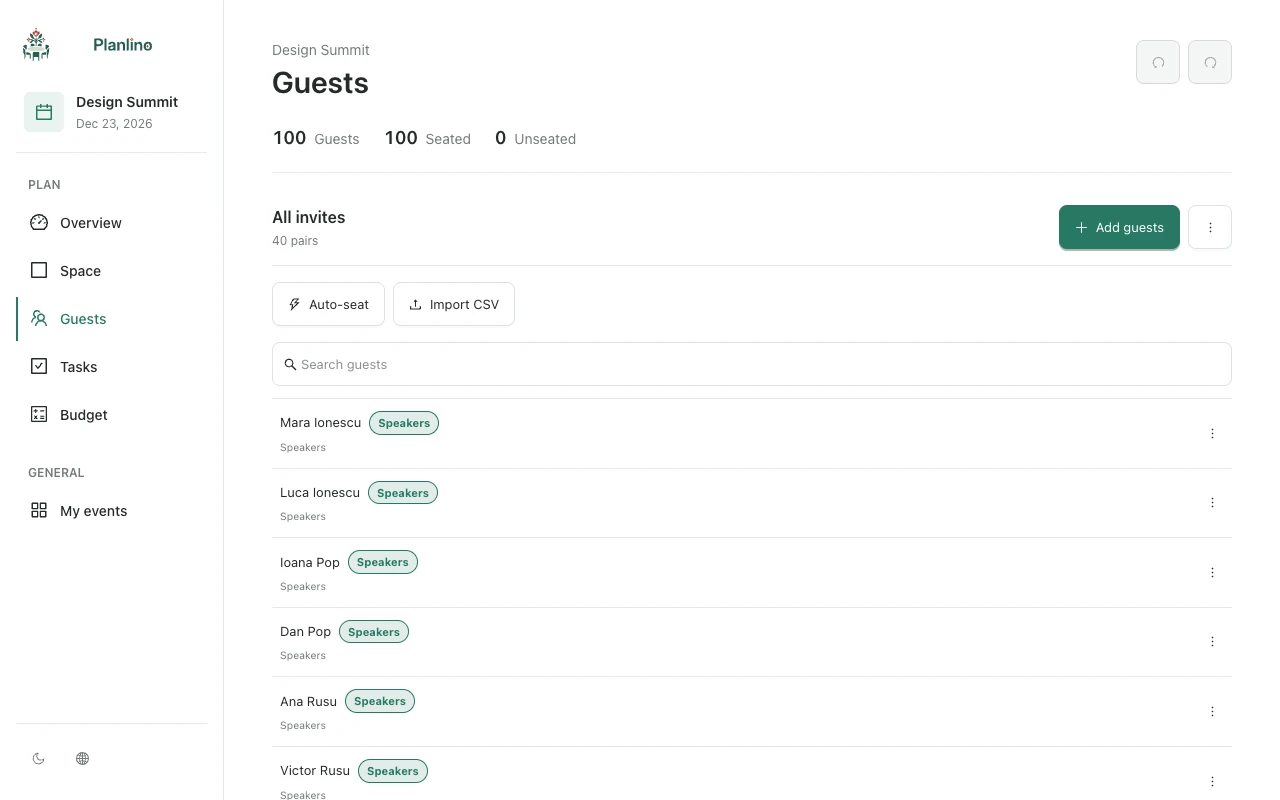
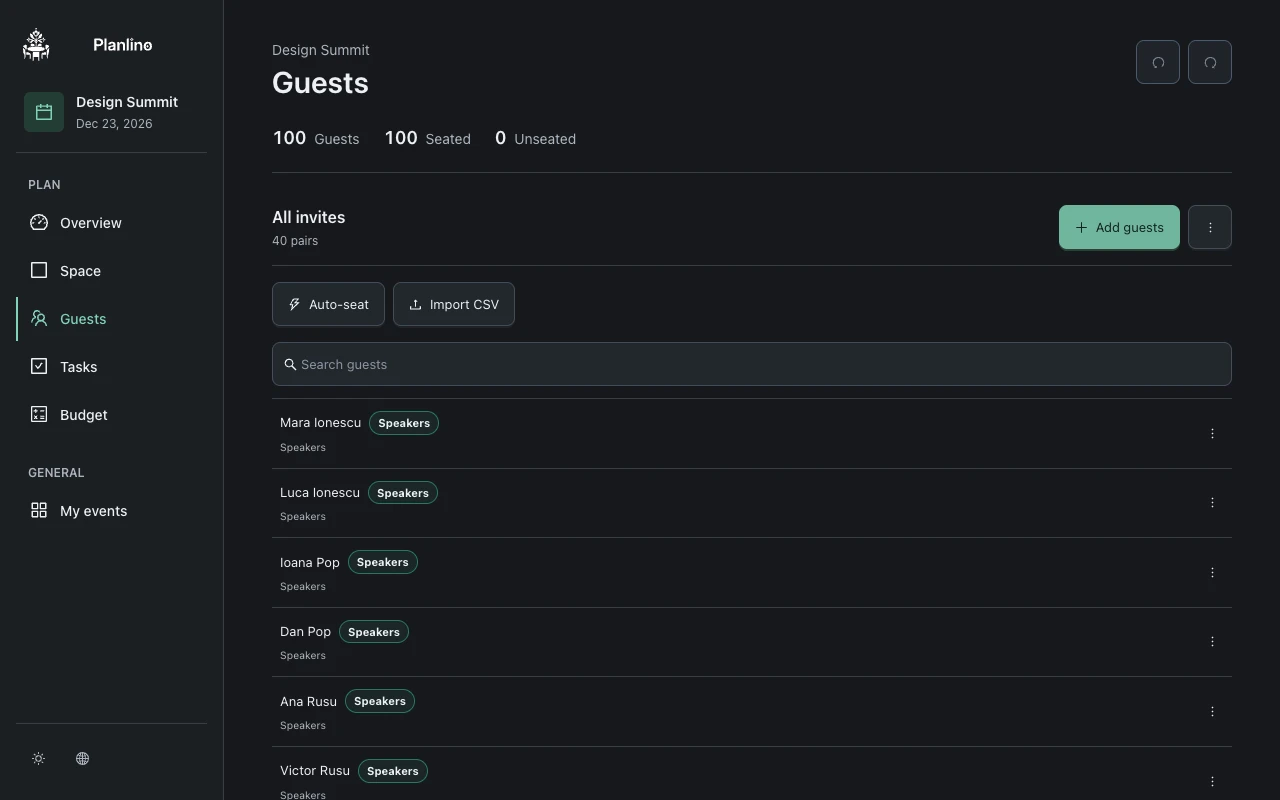
1–2. Update the person and the place
If someone cancels, update the guest list and check their former seat. If a partner joins, add them as a separate guest, connect the pair if appropriate and find two suitable places. Check the seated and unseated totals after either change.
For example, moving from 80 to 81 guests in a layout with 80 places leaves at least one person without a seat. An empty place at another table might solve the count but not the pair's needs. Review the actual assignments before adding or moving furniture.
3–4. Recheck quantities and unfinished tasks
Compare the new guest count with the quantities you entered in Budget. Those expense quantities do not automatically follow the guest list. If a supplier confirms a changed quantity or cost, update the relevant expense lines yourself.
- Check the menu quantity against the agreed attendance count.
- Keep a paid deposit recorded and adjust the remaining balance only after confirming the new quote.
- Add or update a task to confirm the change with the venue; use the deadline you agreed together.
5. Replace the version the venue will use
Export a fresh seating PDF or PNG after the changes are complete. Tell the venue which version replaces the old one and check that its printed copy matches the revised guest assignments. A saved file does not update when you later edit the event.
Keep a restorable event backup containing guests, seating, tasks and budget. A new shared map link gives recipients a read-only seating preview; it does not share the full budget or task board.